

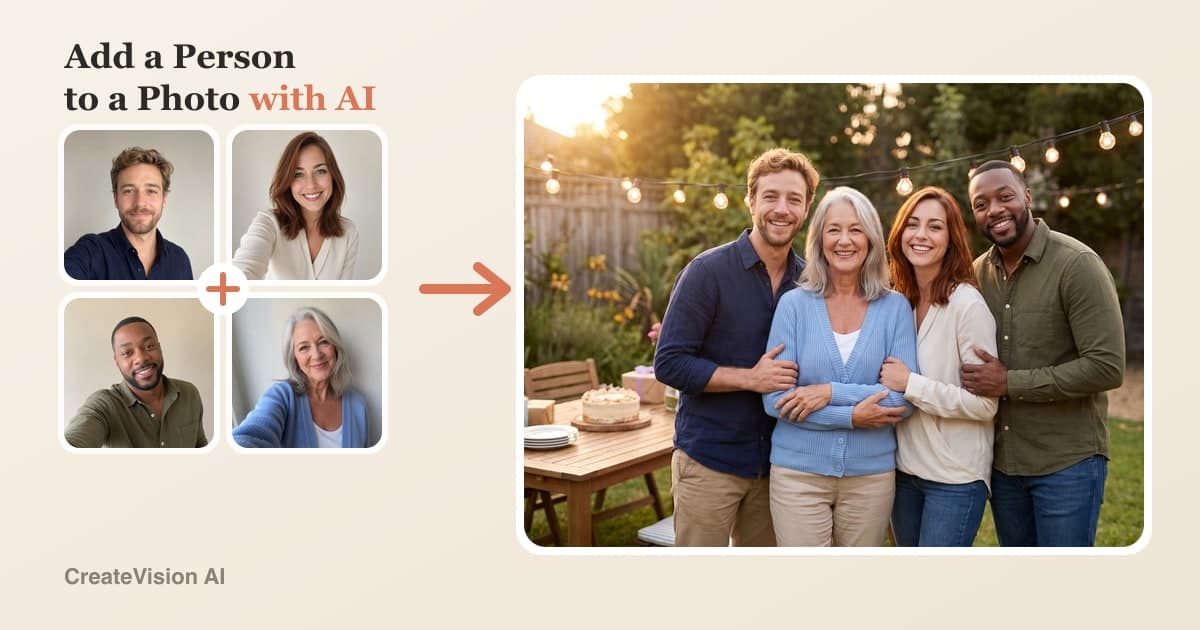
The Fastest Way to Add a Person to a Photo
Someone is always missing from the picture — the friend who took it, the relative an ocean away, the grandmother who couldn't make the trip. The old fix was cutting them out of another photo and pasting them in, which is exactly why most edited group shots look edited. The better fix: don't paste. Upload one clear photo of each person to the AI Group Photo Mixer and let AI rebuild the whole shot as a single photograph — same light on every face, matched scale and perspective, real contact shadows. It takes about two minutes, works in any browser (phone included), and it's free to start. This guide walks through the exact steps, shows unretouched results from one set of selfies, and includes copy-paste prompts if you'd rather do it yourself in any AI editor.
Three Ways to Add Someone to a Photo
There are really only three ways to put a person into a photo they weren't in. Which one fits depends on how much time you have and how much control you need.
One-click AI tool
Upload a photo of each person, pick a scene, done. The tool handles identity preservation, relighting and blending automatically. Best for real family photos, team shots and gifts — anything where the faces have to stay recognizably them.
Best for almost everyone
Write your own AI prompt
General image models (Gemini, ChatGPT and others) can merge people from reference photos if you prompt them carefully — but faces drift, extra people appear, and you'll iterate a lot. Our tested prompts below close most of the gap.
Best if you enjoy tinkering
Photoshop by hand
Manual masking, perspective matching, color grading and shadow painting give you pixel-level control that no AI matches. It's how professional composites for ads are still made — and massive overkill for a family picture.
Best for pixel-perfect commercial work
How to Add a Person to a Photo with AI (Step by Step)
Here's the full workflow in the AI Group Photo Mixer. No account is needed to look around, and signing up to generate is free.
Gather one clear photo of each person
You need 2–5 photos — one per person, including whoever you're adding. Everyday phone selfies work fine. Aim for faces that are sharp, reasonably lit and visible from roughly the chest up; the photos don't need matching backgrounds, lighting or even the same decade. Three people or fewer gives the most reliable results, so for big groups start with the core three and add from there.
Upload them together
Drag all the photos into the uploader at once. Order has one useful trick: if you keep the “use background from first photo” option, the first image's setting becomes the scene — handy when you want to drop the missing person into an existing photo's location rather than invent a new one.
Choose the scene — presets or plain English
Pick an arrangement (side-by-side, staggered, casual, formal) and a background (first photo's, studio, outdoor, indoor), or just describe what you want: “backyard birthday party in the late afternoon, everyone standing close together.” The tool feeds your description through a production prompt that locks the person count and each face to its reference photo.
Pick quality, generate, refine
Standard 1K costs 60 credits, HD 2K costs 80 (the default), Ultra-HD 4K costs 160. Generation takes about one to two minutes. If a pose or expression feels off, tweak the description and regenerate — you're iterating in minutes, not re-gathering everyone for a reshoot. Download full resolution when it's right.
What “adding a person” actually looks like
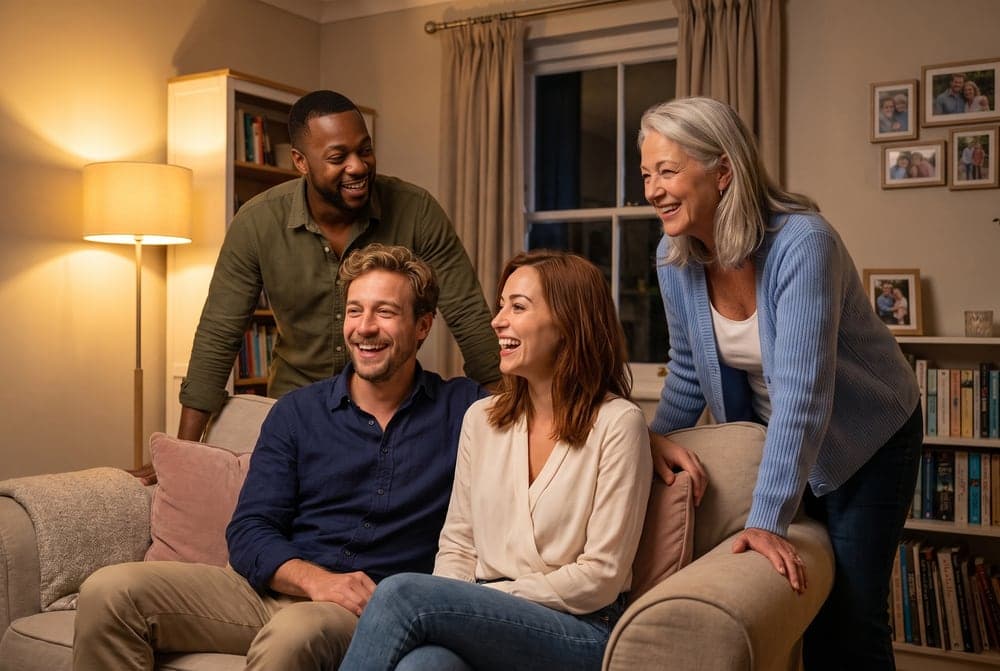
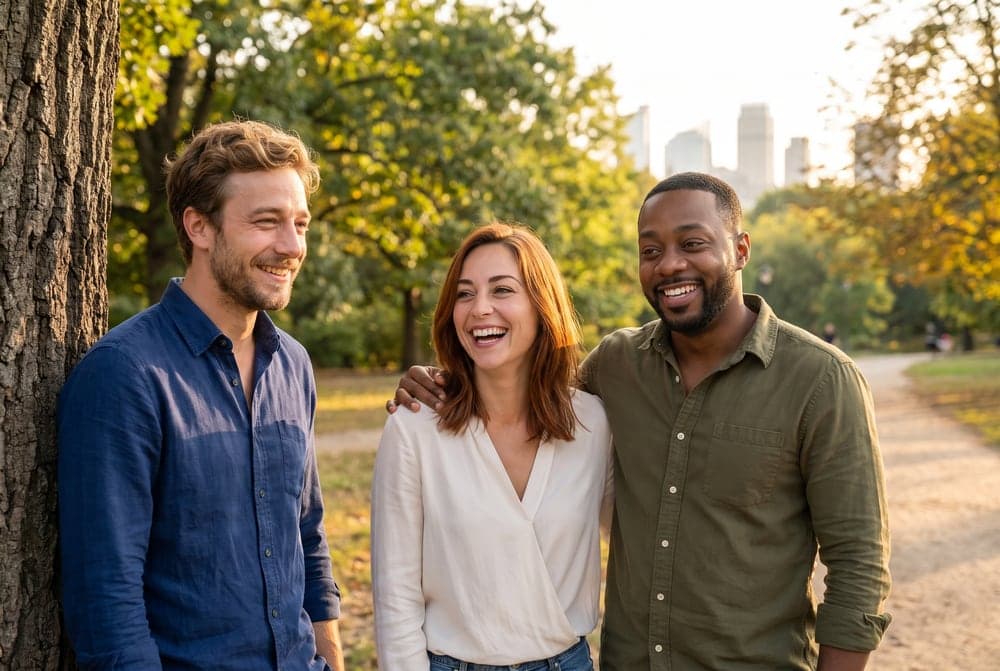
Below is the honest demo: the same backyard-party scene generated from three reference selfies, then regenerated with a fourth — an older family member who wasn't in the original trio. Note how she isn't pasted on top: the light, scale and spacing rebuild around her.
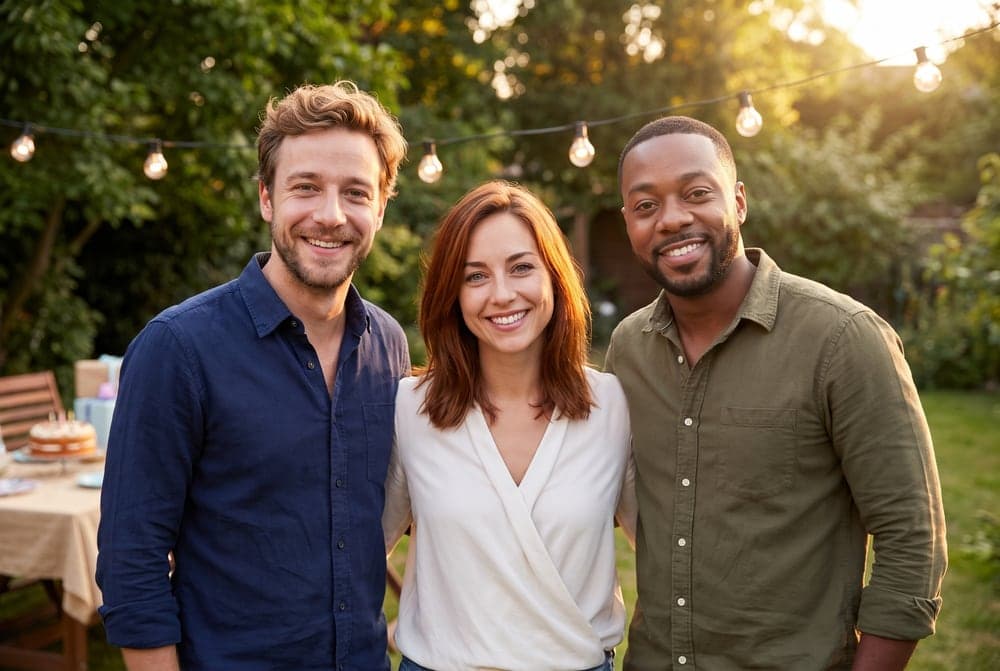
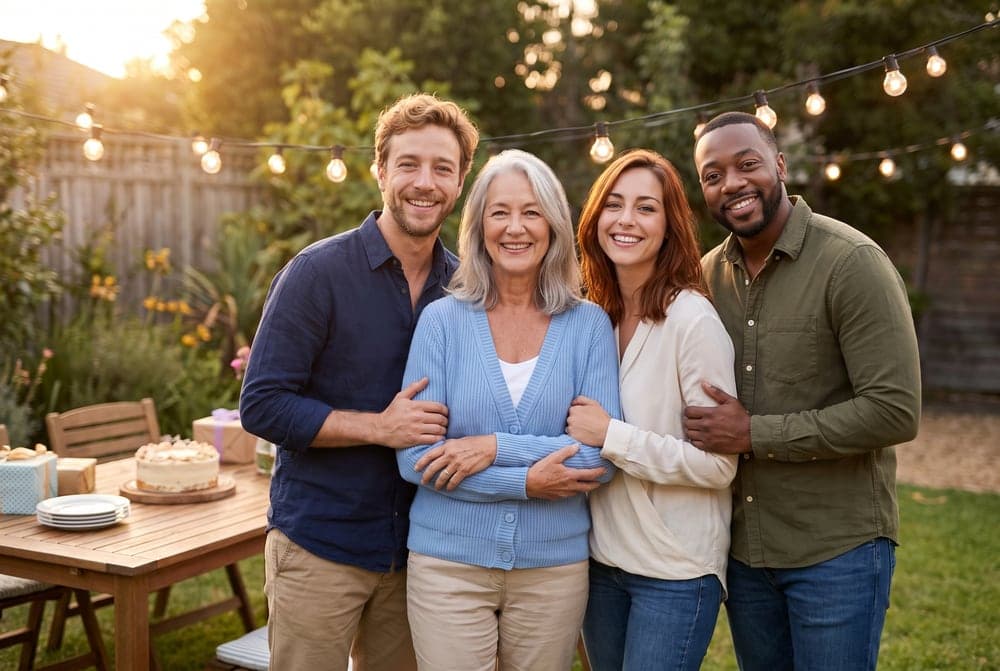
Same Four Selfies, Three Scenes — Unretouched Results
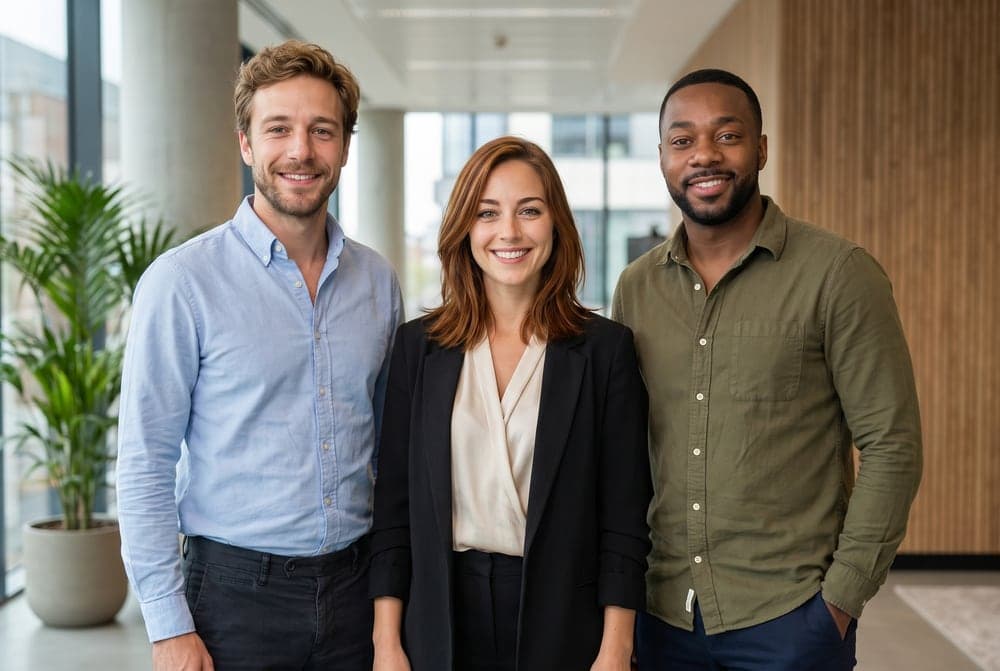
Everything below comes from the four reference selfies shown here — two men, two women, four different source photos with different lighting. Each result is a single generation from the live tool, not a curated best-of-twenty. That's the point: this is what you can expect on your first or second try.

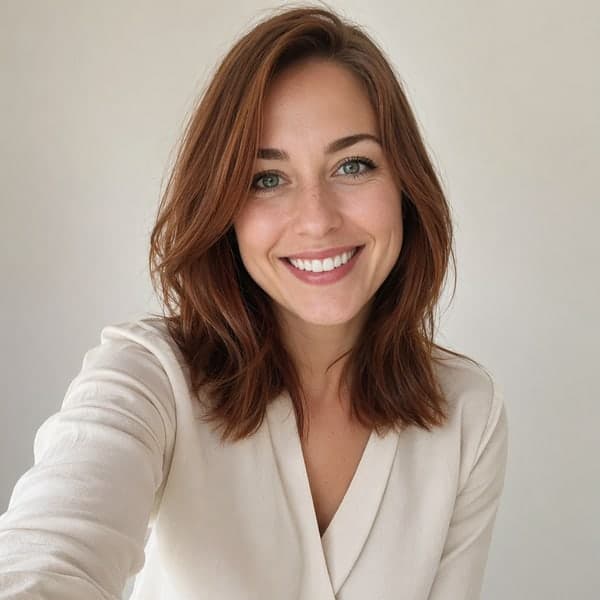

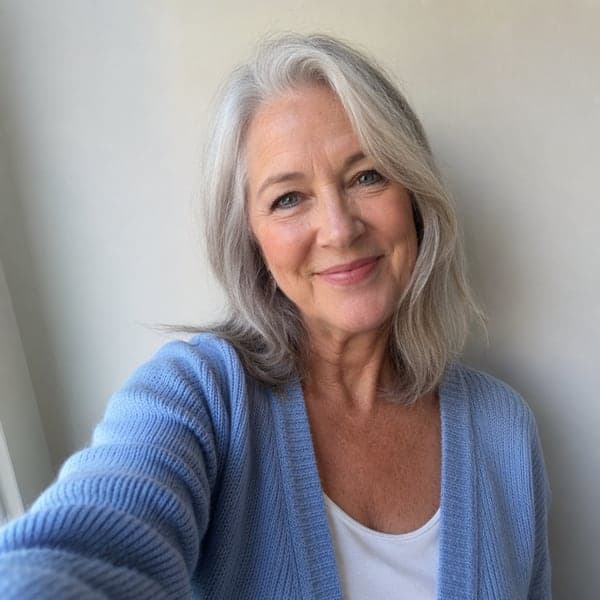
The four reference photos: ordinary selfies, different walls, different light.
How to Photoshop Someone Into a Picture — and When You Shouldn’t
If you'd rather do it manually, the honest recipe is: cut a clean mask of the person (pen tool beats magic wand for hair), match their size and eye-level to the destination's perspective, match color temperature and contrast with curves, paint a contact shadow plus a soft cast shadow that follows the scene's light direction, then unify the grain and sharpness so the pasted layer stops looking pasted. Budget a full afternoon the first time. Here's how the two approaches actually compare:
| Photoshop | AI Group Photo Mixer | |
|---|---|---|
| Time | 2–4 hours per composite | About 2 minutes |
| Skill needed | Masking, color grading, shadow painting | None — upload and describe |
| Cost | Photoshop subscription (or an editor’s fee) | Free to start; 60–160 credits per photo |
| Faces | Pixel-identical (they come from your photo) | Locked to reference photos, very close |
| Lighting realism | As good as your eye and patience | Relit automatically to one light source |
| Revisions | Start over, mostly | Edit the description, regenerate |
Manual compositing still wins when you need pixel-exact faces for print advertising and have the hours. For family photos, team shots and cards, AI gets you 95% of the realism in 1% of the time — and unlike a paste-job, the lighting actually matches.
AI Group Photo Prompts You Can Copy
These prompts are the scene descriptions we actually used for the images in this guide — paste one into the AI Group Photo Mixer's description box, or adapt it for any image AI that accepts reference photos. They also answer the most common failure: models adding strangers or blending faces.
Create a natural group photo using ONLY the people from the uploaded reference photos — exactly this many people, no extras. Warm cozy living room in the evening, soft lamp light, relaxed multi-generation family gathering, everyone laughing naturally around a sofa. Keep each person’s exact face, skin tone and hair from their reference photo; light everyone from the same source with realistic shadows.
Use the background and setting from the first photo. Add the person from the last photo into the group naturally — matched height, same light direction and color temperature as everyone else, realistic contact shadow, standing comfortably close as part of the group. Do not change anyone else’s face or position. The final photo must contain exactly the people from the reference photos, no one else.
Combine the uploaded people into one professional team photo: neutral light-gray studio background, business casual, formal side-by-side arrangement, confident friendly expressions, consistent soft studio lighting on every face, sharp focus, corporate photography quality. Exactly the number of people uploaded — no additional people.
Gently combine the uploaded people into one warm family portrait. Place the person from the last reference photo naturally within the group, with soft even light, matched scale, and a calm, warm atmosphere. Preserve every face exactly as in its reference photo, with natural skin tones and no beautification. Exactly the uploaded people only.
Two habits make any of these work better: state the exact person count (models love inventing guests), and explicitly say faces must match the reference photos. The mixer's built-in prompt adds both automatically — and if you want a scene description written for you, describe the occasion to Ava and let it draft the prompt.
What People Actually Use It For
Family reunions that never happened
Grandparents in one country, grandkids in another, someone always behind the camera. Collect one photo from each person over chat and make the complete family portrait — for many scattered families it's the only “everyone together” photo that exists.
Remote team photos
The website needs one team photo and the team has never shared a room. Combine everyone's headshots into a clean studio or office group shot for the About page, a pitch deck or LinkedIn — no flight budget required.
Keeping a loved one in the picture
Some families quietly add a parent or grandparent who has passed to a wedding photo or holiday portrait. Done with care, it's a keepsake, not a trick — we'd only suggest being open about it when you share the result.
Cards and milestones
Holiday cards, anniversary gifts, graduation collages: one generation instead of a photoshoot. Pair it with the AI Family Photo Generator for portrait-styled versions, or the AI Couple Photo tool when it's just the two of you.
What It Costs (Real Numbers)
The mixer runs on Nano Banana Pro, and pricing is per generated photo, by output quality:
Standard 1K
60 credits
Social posts and quick previews
HD 2K (default)
80 credits
Cards, prints, website use
Ultra-HD 4K
160 credits
Large prints and frames
Signing up is free, no card required. If you're making many (event cards, several variations), Premium at $29/month gives 8,000 credits a month (~100 HD photos) and Ultimate at $49/month gives 18,000; one-time credit packs start at $30 for 3,000 credits. Your photos stay private to your account and are never used to train AI models — that applies on the free plan too.
Honest Limitations
Things the marketing pages of most tools won't tell you — ours included, so here they are:
Three people or fewer is the sweet spot. The tool accepts up to five, but face fidelity is strongest at 2–3; with four or five, check each face and regenerate if one drifts.
Faces are very close, not pixel-identical. It's a re-photograph, not a copy-paste — occasionally a hairline or expression shifts slightly. If a detail matters, regenerate; it's included in the iteration.
Source quality sets the ceiling. A blurry, heavily filtered or tiny face in the reference photo means a soft or approximate face in the result.
It takes a minute or two per photo, not seconds — the relighting pass is what makes results look real, and it isn't instant.
One photo per generation. There's no batch mode; variations mean generating again (which is also how you refine).
Be transparent with sensitive composites. For memorial images especially, tell the people you share them with that it's an AI-made tribute.
Get Everyone in the Picture
“Everyone together” shouldn't depend on geography, schedules or who was holding the camera. Upload one photo per person, describe the moment, and in about two minutes you'll have a group shot where every face is genuinely theirs and the light genuinely matches. It's free to start — try the AI Group Photo Mixer.


