

AI Object Remover
Remove unwanted objects from photos intelligently
Tap to uploadDrop image or click
JPG · PNG · WebP
Preview Examples


Drag the slider to compare
What is AI Object Remover?
AI Object Remover uses advanced AI to intelligently remove unwanted objects, people, and elements from photos. It automatically fills removed areas with realistic content that matches the surrounding image perfectly.

Why Clean Up Photos With Our AI Object Remover
Professional quality, privacy protected, instant results
Fill Gaps With Real Detail
The AI rebuilds the area behind what you remove with matching texture, pattern and lighting, not a blur or a smudge.
Ten Ready-Made Removal Presets
Start from people, tourists, clutter, text, blemishes, power lines, shadows, real estate clutter, product cleanup or a busy background.
No Editing Skills Needed
Skip hours of cloning and patching. Upload, pick what should go, and download a clean photo.
See What You Can Do With the AI Object Remover
Perfect for various professional scenarios, instant and secure

Clear Tourists Out of Your Travel Shots
Remove crowds and passers-by from your landmark photos. You get the empty, open view you wanted without waiting hours for the right moment. Upscale your clean photo
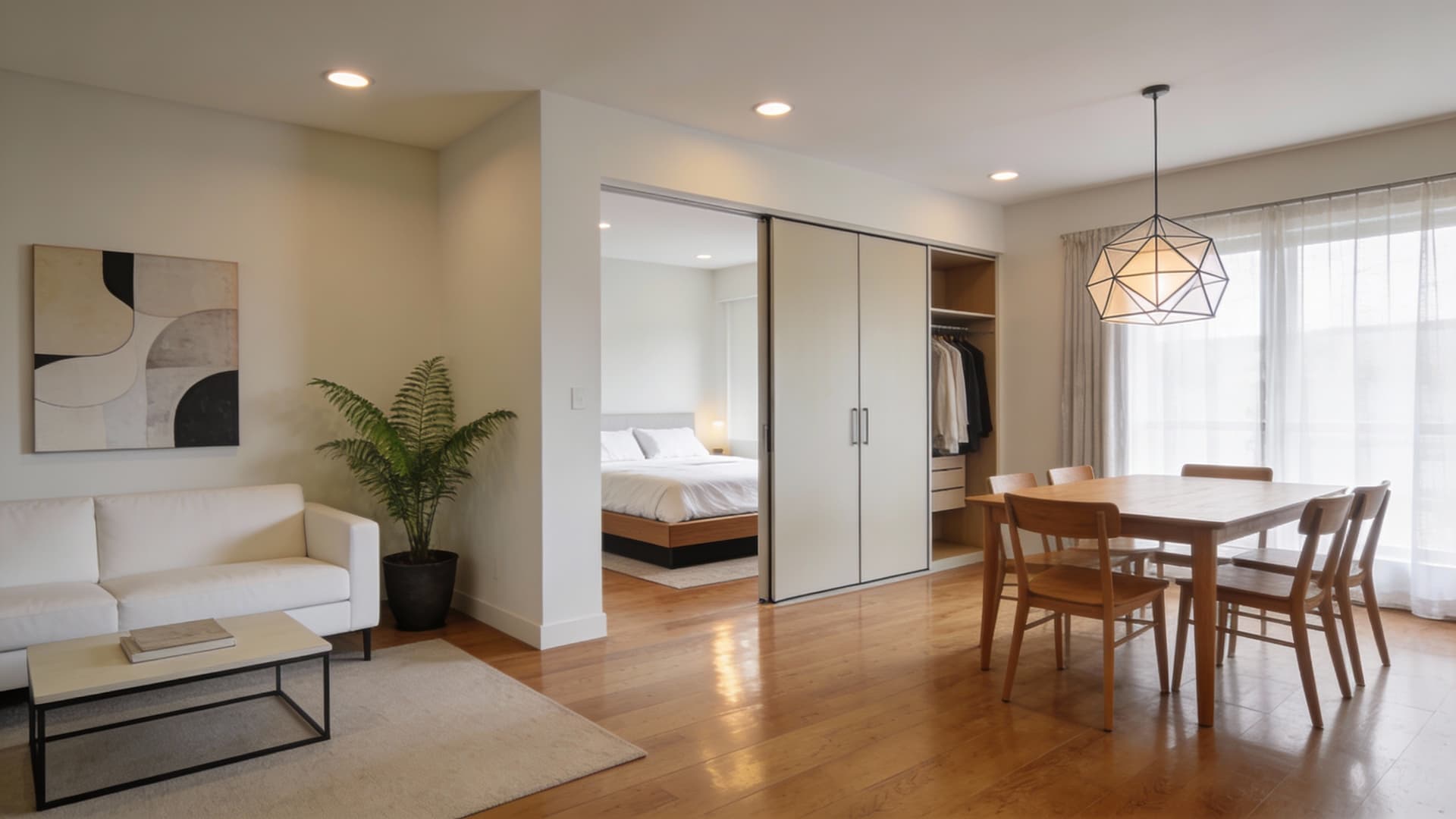
Declutter Your Property Photos
Remove clutter, cords and personal items from your room photos. Your listing shows the space itself instead of everyday mess. Stage the empty room
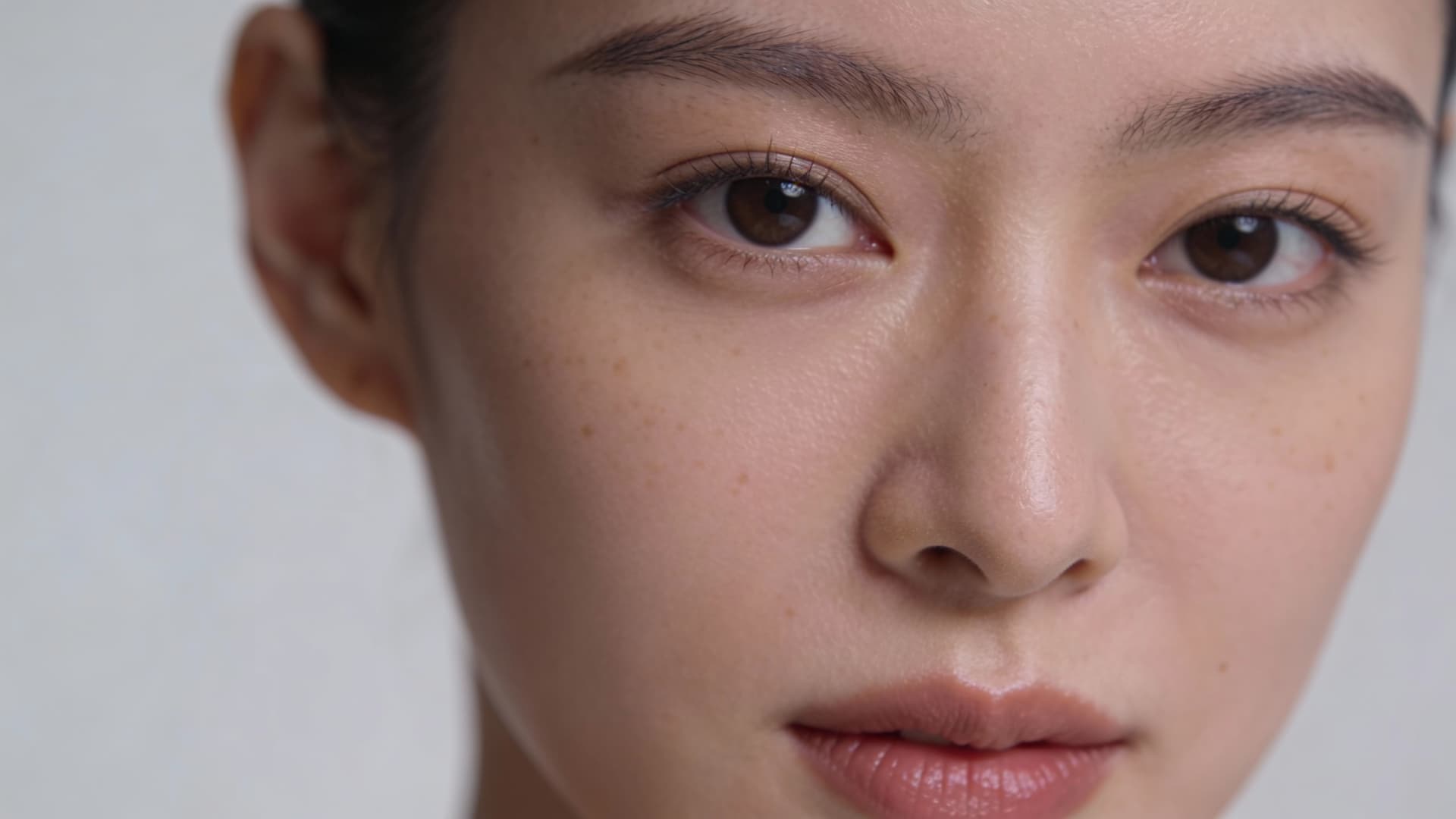
Retouch Portraits Without Losing Texture
Remove blemishes and stray distractions from your portraits. The aim is a clean photo that still looks like real skin, not plastic. Make a pro headshot
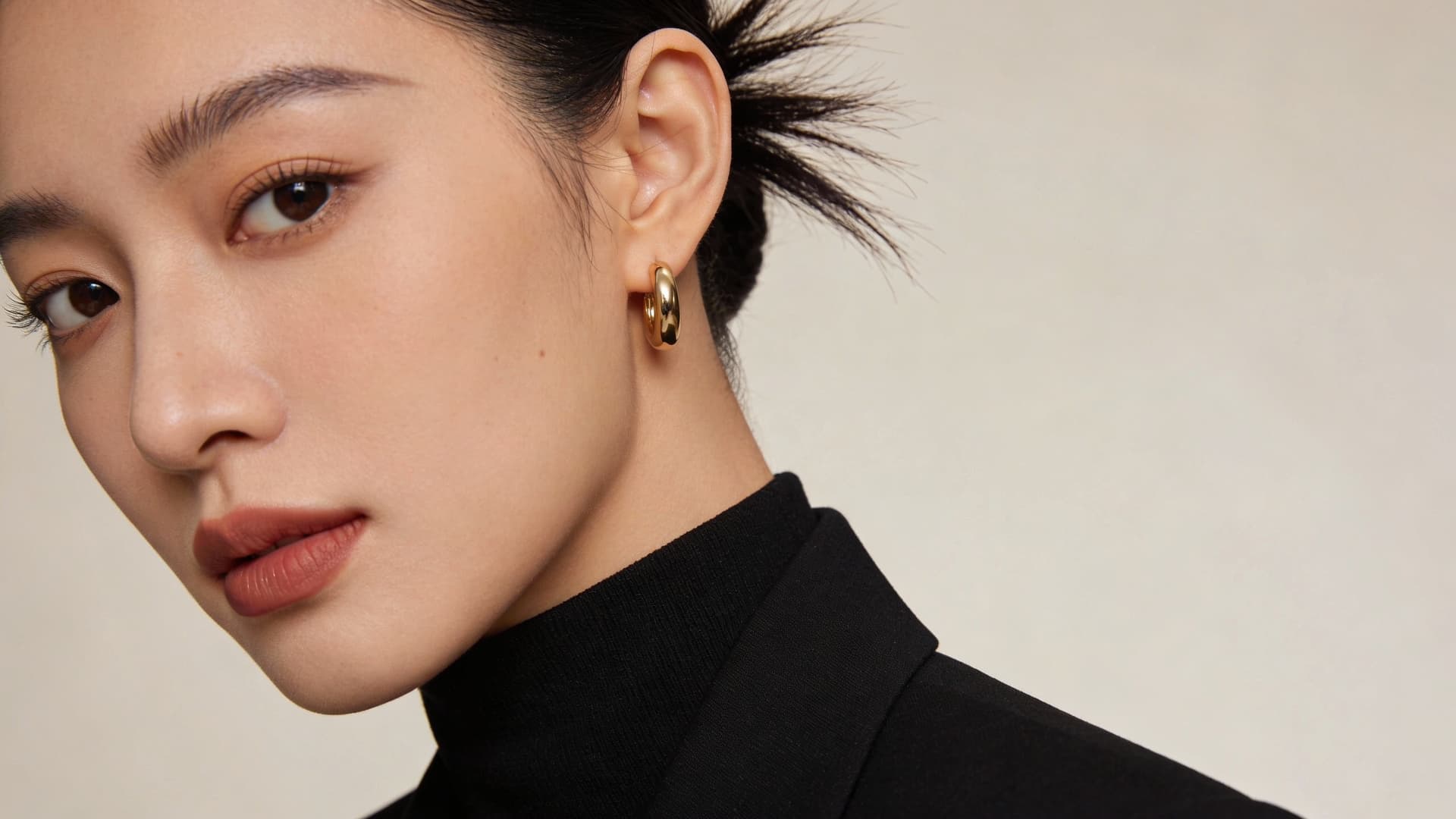
Erase Stray Text From Your Own Images
Remove captions, labels and scribbled notes from photos and graphics you own. The background behind the lettering is rebuilt to match its surroundings. Use the text remover
Who Uses AI Object Remover
Four ways people use it every week
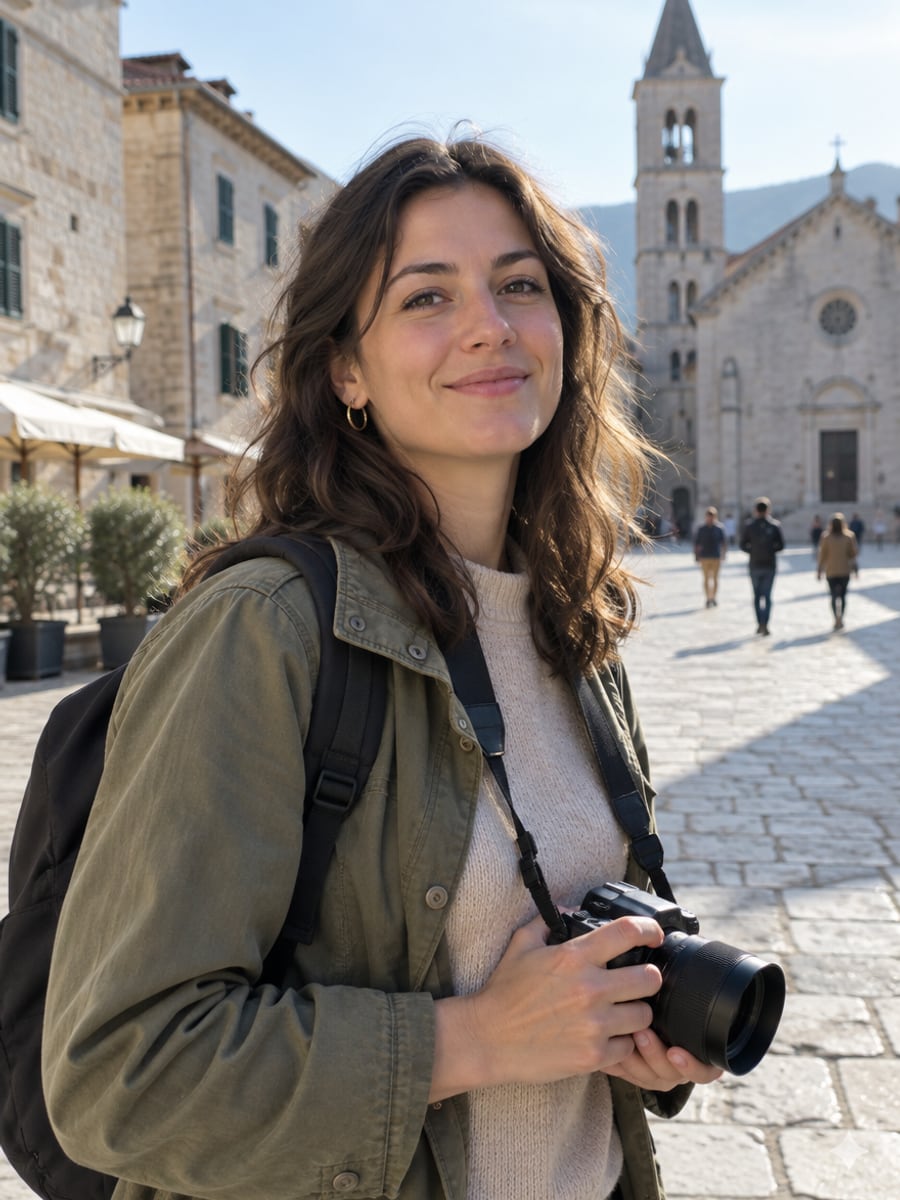
Keep the landmark, lose the crowd
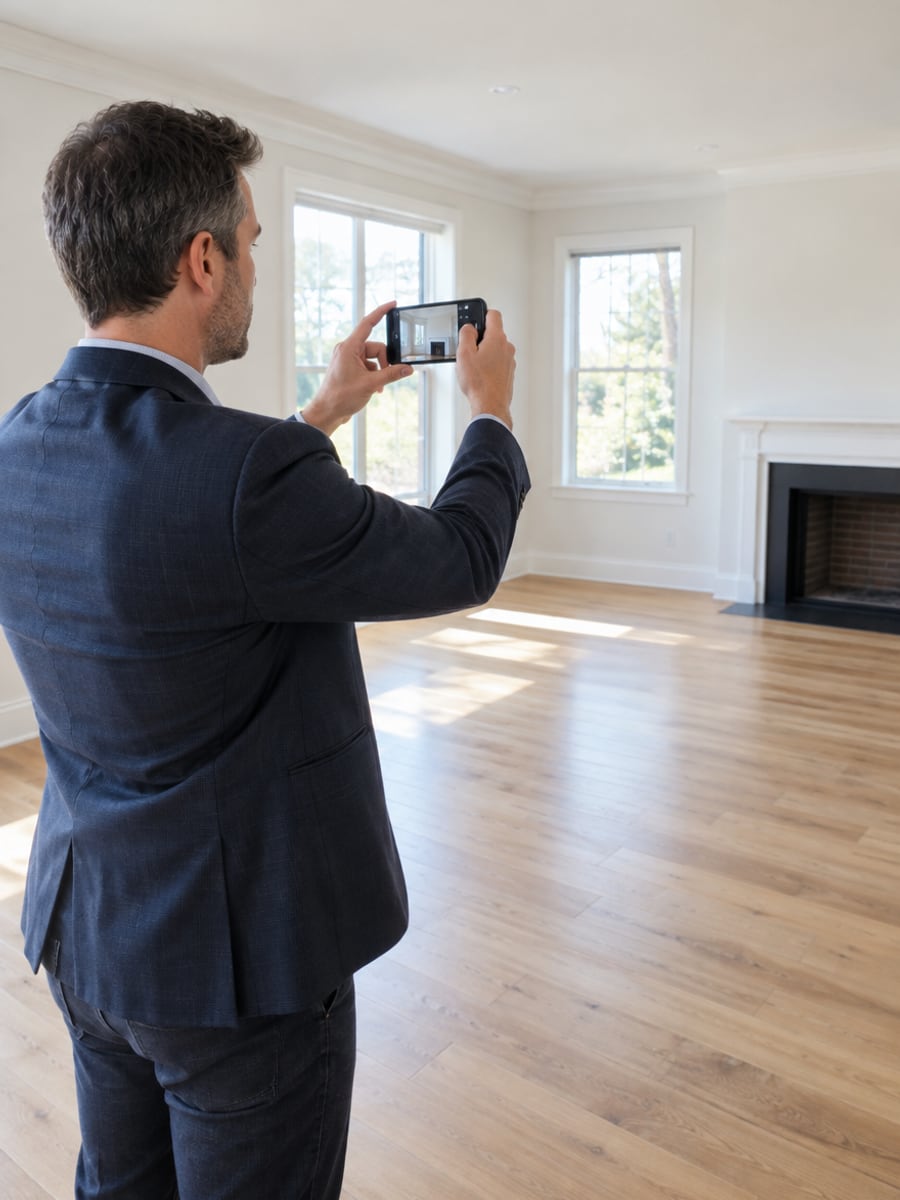
List rooms that look clean and open

Remove distractions from your product shots
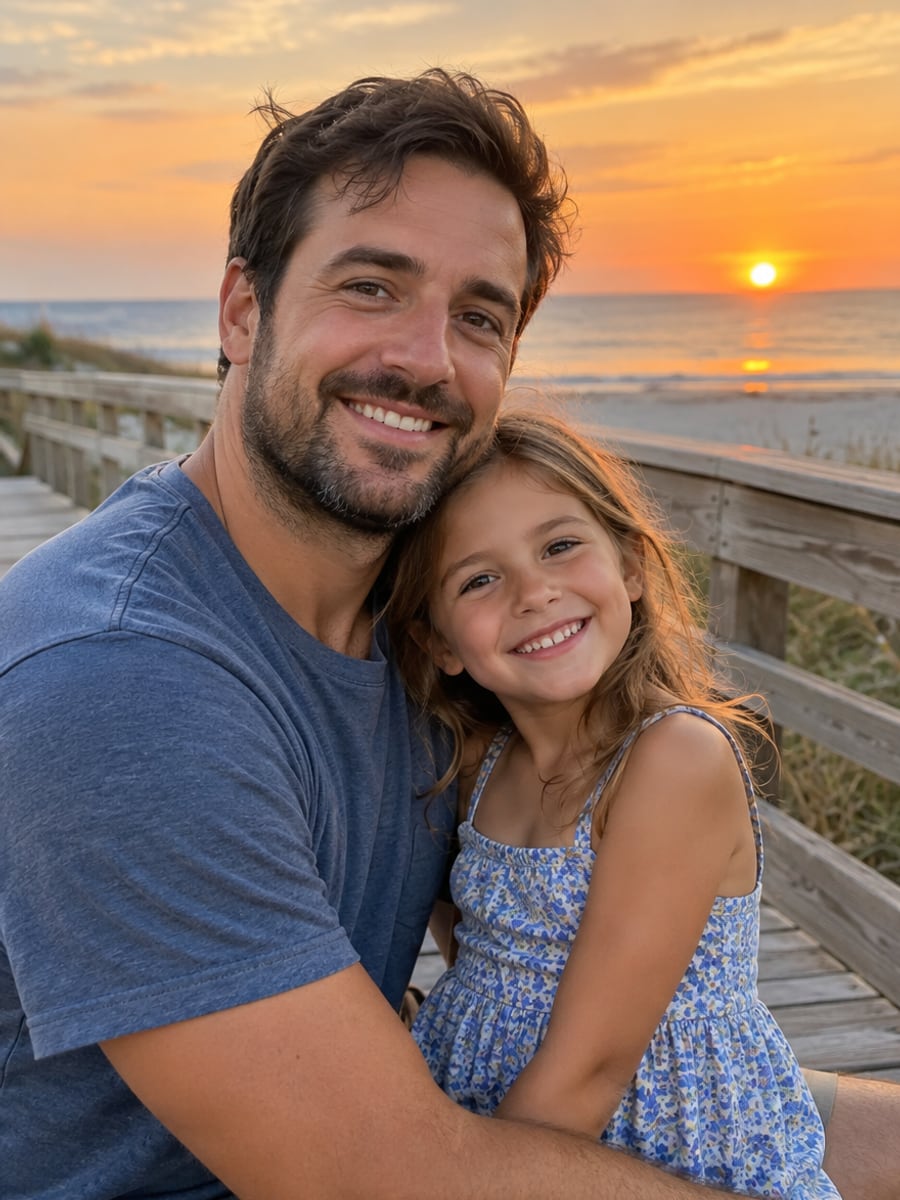
Save the photo a stranger walked into
How to Remove Unwanted Objects with CreateVision
Upload your photo, select a style, and download your professional result instantly

Upload Your Photo
Select an image with something you want gone. Results are best when the area around the object shows enough background for the AI to rebuild.

Pick What to Remove
Choose a preset such as people, tourists, text, power lines or clutter. Add a short note naming the exact object if the photo has several.

Download Clean Image
The AI fills the removed area with content that matches the surrounding image. Compare it with the original and download.
The All-in-One AI Creation Platform
One account for images, videos, an AI agent that works for you, expert AI mentors and 80+ ready-made tools.
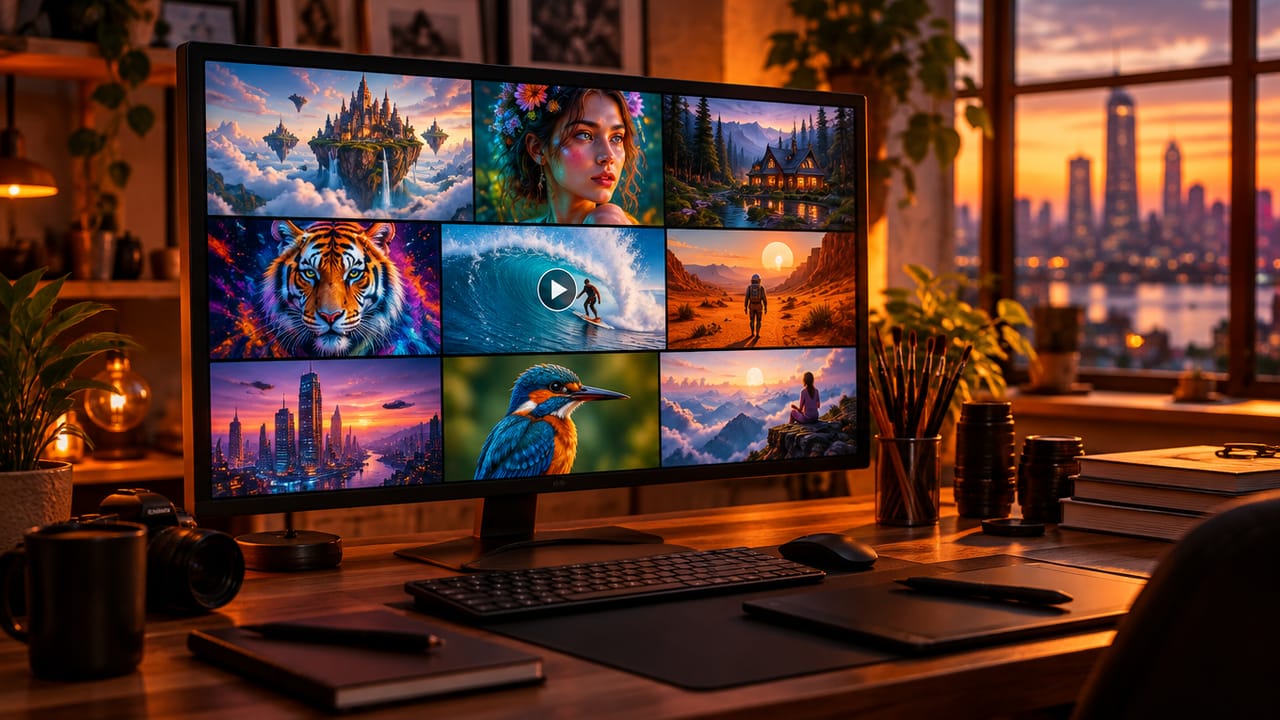
AI Image & Video Generator
Every leading model in one workspace: Seedream, Nano Banana, GPT Image, Seedance, Veo and more.
Open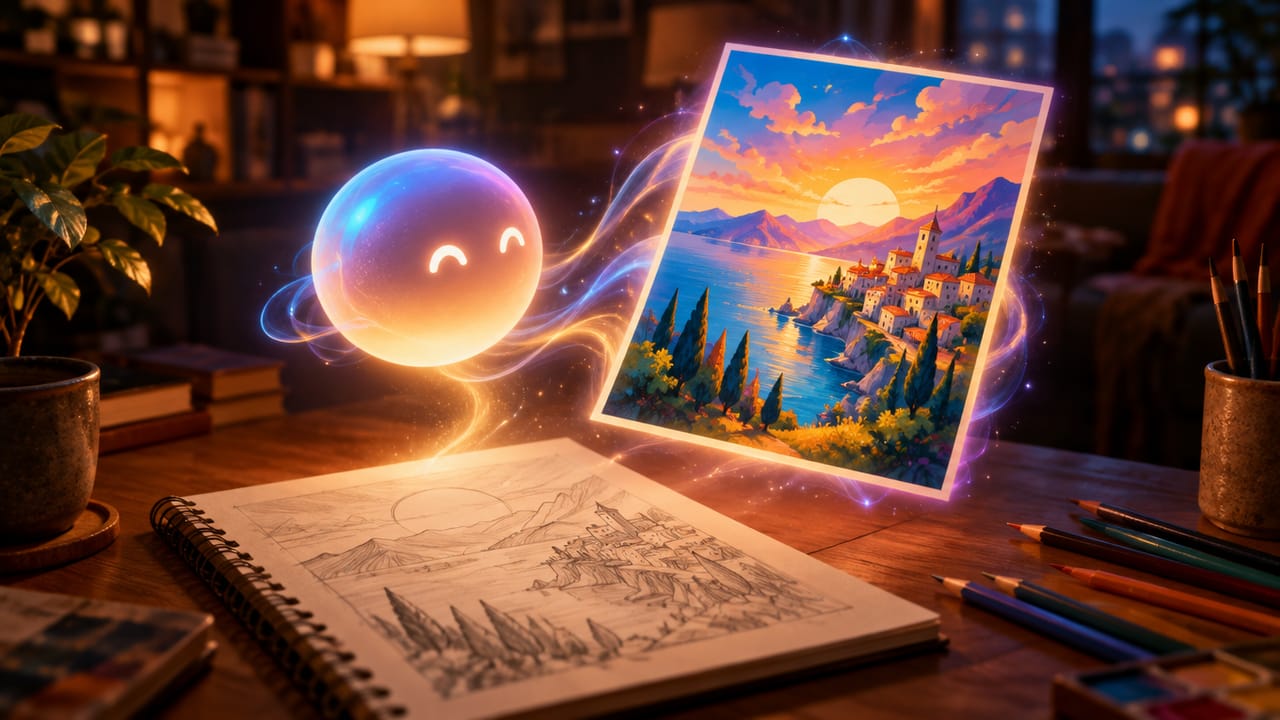
Ava, your AI creative agent
Describe what you need and Ava plans, generates and iterates for you.
Open
80+ AI tools
One-click tools for photos, videos, cards, portraits and viral trends.
Open
Template library
Thousands of ready prompts and styles to start from.
Open
Studios
Portrait, marketing, poster and cinema studios for finished work, not single shots.
Open
AI model library
Compare and pick the right image or video model for every job.
Open
AI mentors
Learn from expert mentors in photography, design and video, then create with their guidance.
Open190K+ creators
Using CreateVision to create and share
What Users Say
Real feedback from users worldwide
“I shot a beautiful landmark photo but tourists kept walking through. This tool removed them perfectly and you can't even tell. The background reconstruction is incredible!”

“Real estate photography is 10x easier now. I remove clutter and personal items in seconds instead of asking sellers to stage everything. My listings look so professional!”

“Perfect for cleaning up my Instagram photos. I can remove photobombers, power lines, and distracting objects instantly. Game changer for content creators!”

AI Object Remover FAQs
An AI object remover takes unwanted things out of a photo and rebuilds what should be behind them. CreateVision's AI Object Remover handles people, tourists, clutter, text, blemishes, power lines and shadows. The removed area is filled with content that matches the surrounding texture and light.
A good object remover rebuilds the background instead of blurring it, and is easy to aim at the right thing. CreateVision gives you ten removal presets for common jobs, plus a short note field to name the exact object. Optional settings for fill, edges and quality let you tune harder photos. Each result is a flat 50 credits.
Upload a photo, pick a removal preset and, if needed, describe what should go. The AI looks at the surrounding texture, lighting and perspective, then generates matching content to fill the gap. You get a new version of the whole photo to compare and download.
Presets cover people, tourists and crowds, single objects, text and lettering, skin blemishes, power lines and wires, shadows, real estate clutter, product photo distractions and busy backgrounds. Small to medium objects with plenty of visible background give the most reliable results.
Each result costs 50 credits. You can start with 200 free credits from Google sign-up. Free accounts download with a small CreateVision mark, and subscribers and credit-pack buyers can turn it off.
Use it only on images you own or have the rights to edit. Do not use it to strip someone else's branding, copyright notices or stock-photo marks so you can reuse their work. Cleaning up your own travel, property, product and family photos is exactly what it is for.
The AI has to invent what was hidden behind the object, so large removals and busy backgrounds are harder to rebuild exactly. Very large objects, faces partly covered by the item, and repeating patterns like tiles or text can show small mismatches. Naming the exact object in your note, or running it again, usually helps.
Clean Up Your Photos With the AI Object Remover
Upload a photo, choose what to remove, and download a clean version in one go.
Related Tools You Might Like
Explore more AI creative tools



Related Tools You Might Like
Explore more AI creative tools