What the Hotel Lobby AI video trend is
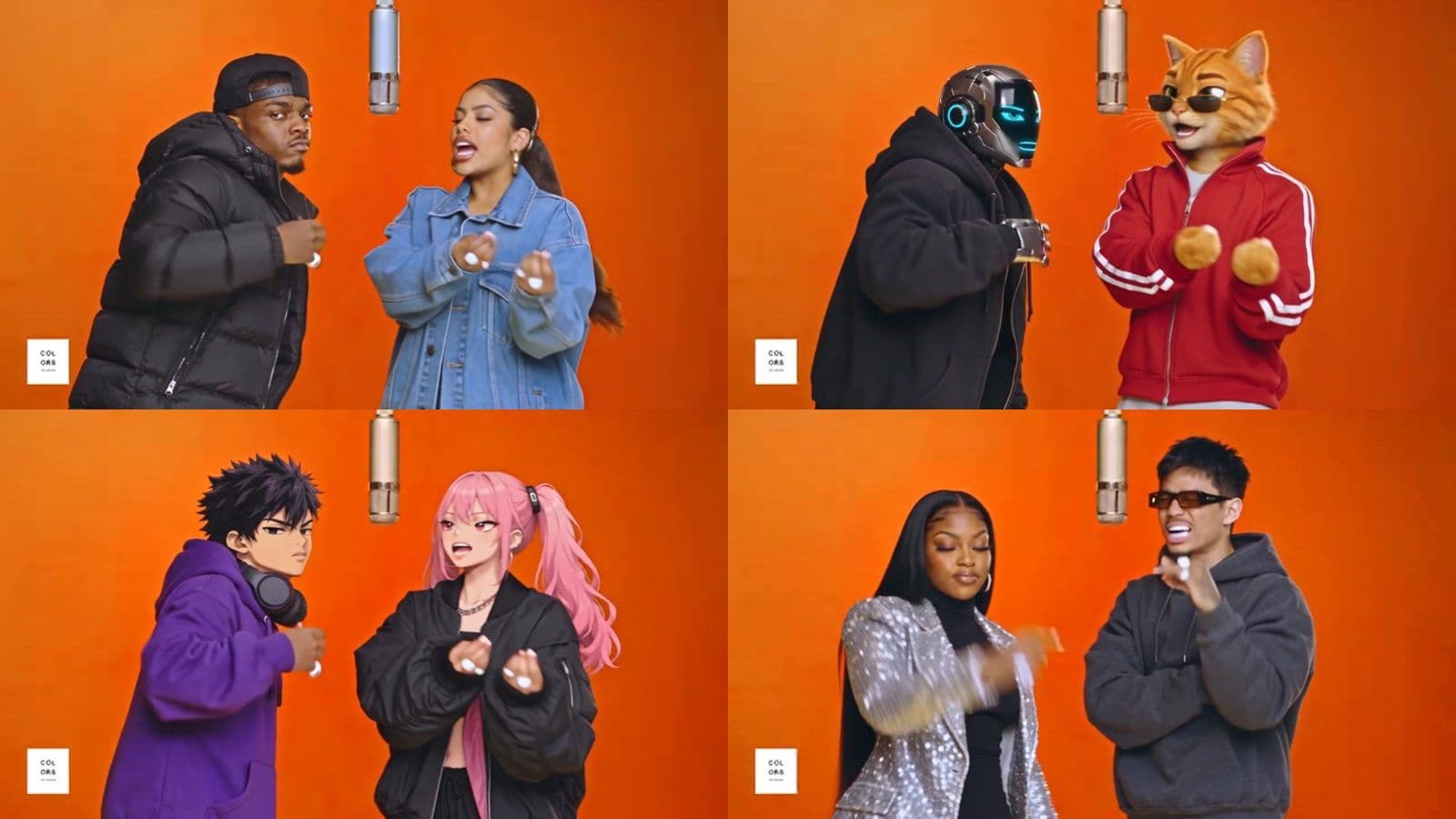
The Hotel Lobby AI video trend takes Quavo and Takeoff's "Hotel Lobby" performance on A COLORS SHOW — two performers in a bare burnt-orange booth with one microphone hanging between them — and swaps both of them for someone else. People use themselves and a friend, a couple, two pets, cartoon characters or celebrities.
- What makes it recognisable is the choreography, not just the song: the forward point, the forearm across the face, the turn away and the hush gesture, in the same camera framing as the original.
- Most versions use the 15 seconds that end on the line "in the hotel lobby". A longer cut runs the whole chorus.
- The original audio stays under the video, so the new performers look like they are rapping the real track.
That is why "make a dancing video from two photos" is not the same thing. A Hotel Lobby AI video has to keep the original performance moment by moment and only change who is performing it.
How to make a Hotel Lobby AI video in 3 steps
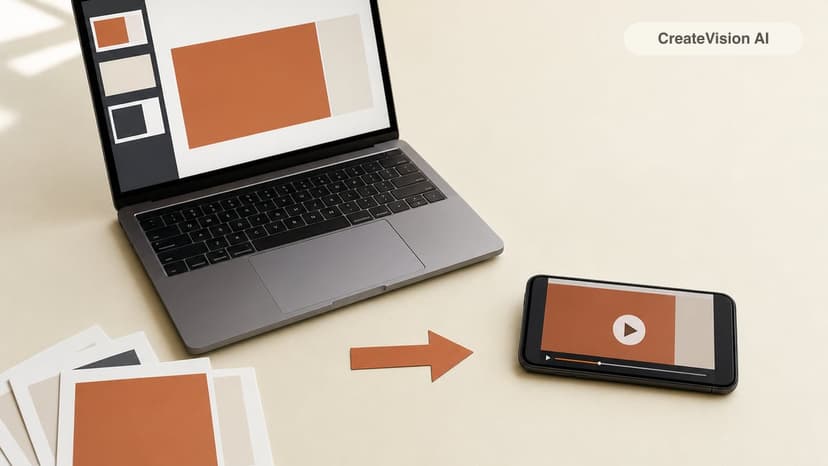
On CreateVision the source clip, the prompt and the audio are already set up, so you only bring the two people.
- Open the Hotel Lobby AI video generator and add two photos — the first replaces the performer on the left, the second the one on the right. You can also pick a preset character for either side.
- Choose the 15-second hook or the 30-second chorus, and a quality tier (the button shows the exact credit price before you start).
- Click Swap Us In. The video takes a few minutes; you download an MP4 with the original audio mixed back in.
If you would rather run the model yourself, the prompt we use is further down. The rest of this guide explains the choices that decide whether the result looks like the trend or like a random dance video.
Which clip to use: the 15-second hook or the 30-second chorus
There are two cuts of the performance, and the choice changes both the result and the price.
- The 15-second hook is the version almost everyone posts. It ends on "in the hotel lobby", so the punchline lands at the end of the clip and it loops cleanly on TikTok and Reels.
- The 30-second chorus starts at "Water on me like the sauna" and includes every camera change. Use it when you want the full moment rather than the meme.
Quality tiers on CreateVision
| Seedance Mini | 300 credits (15 s) | Quick preview. The moves only roughly follow the original. |
| MiniMax H3 | 1,125 credits (15 s) | Balanced middle option. |
| Seedance 2.5 (default) | 1,620 credits (15 s) / 3,240 (30 s) | Every move stays frame for frame. The only tier for the 30-second chorus. |
Credits are held when you start and only charged when the video is delivered. If a swap fails, the hold is released automatically.
Photos that work (and photos that fail)
The photos decide more of the result than the model does. Each photo is the only information the AI has about that person's face, hair, outfit and body.
- ✅ One person per photo. Two photos, two people.
- ✅ Facing the camera, evenly lit, face and outfit clearly visible. Head-and-shoulders works; full body is better because the performance shows arms and torso.
- ✅ The outfit you want in the video. Whatever the photo shows is what they wear in the booth.
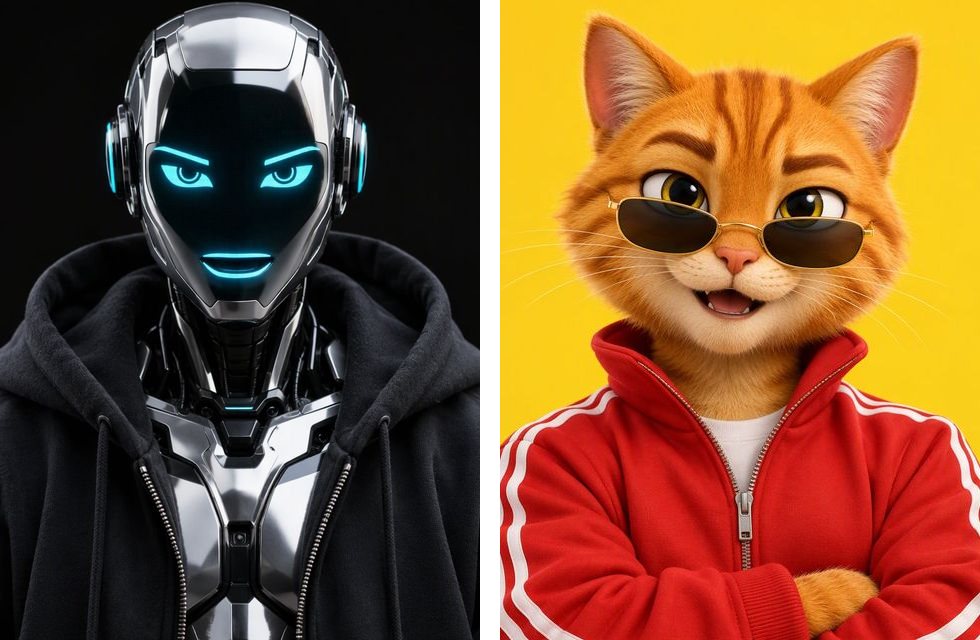
- ✅ Pets and cartoon characters work best from a sharp, front-on image.
- ❌ Group photos or a second face in the background — the model may pick the wrong person.
- ❌ Sunglasses, hands over the face, heavy shadows or strong filters.
- ❌ Tiny faces in a wide shot, or very low-resolution screenshots.
Only upload photos you have the right to use: yourself, friends who agreed, your pets, or characters you created.
The Hotel Lobby AI prompt
If you make the video directly with Seedance 2.5 (video edit mode, the original clip as @video1 with its audio removed, two photos as @image1 and @image2), this is the structure that held up in our tests. Describe the original performers by what they wear so the model knows exactly who to replace.
Edit the video: STRICT CHARACTER AND WARDROBE REPLACEMENT — TWO REFERENCES
@image1 — replacement for the LEFT performer.
@image2 — replacement for the RIGHT performer.

SOURCE PRIORITY
@video1 controls all movement, performance, lip-sync, facial expressions, gaze,
gestures, camera movement, framing, editing and timing. The reference images
control each replacement's face, hairstyle, skin tone, body, clothing and
accessories. Each reference image shows ONE person.

CHARACTER 1 — LEFT PERFORMER
Replace the performer on the left (describe their outfit) with the person in
@image1. Match @image1's face, hair, clothing and accessories exactly. Do not
keep the original performer's jewelry or sunglasses unless @image1 shows them.

CHARACTER 2 — RIGHT PERFORMER
Replace the performer on the right (describe their outfit) with the person in
@image2, with the same rules.

PERMANENT IDENTITY ASSIGNMENT
Left and right are the viewer's view at the start of @video1. Bind each
replacement to that performer for the whole clip. Never swap identities, blend
faces or exchange outfits.

EXACT SOURCE PERFORMANCE
Keep every gesture, mouth movement, head turn, camera move and cut at its
original time and speed. Same duration. No new poses, cuts or people.

ENVIRONMENT
Keep the burnt-orange booth, the hanging microphone and the lighting.
Do not copy the reference photos' backgrounds.
- Remove the audio from the source clip before uploading. In our tests, Seedance 2.5 rejected the edit when the clip still carried the copyrighted song.
- Add the original audio back afterwards, starting on the same frame as the clip. Because the motion and the audio start together, the mouth movements line up.
- Keep the left/right order of the photos the same as the order of the @image tags.
On CreateVision all of this — the clip, the prompt, the audio and the mixing — is done for you.
Three ways people make it, compared
Tutorials for this trend use three different techniques. They are not equally good at the thing that matters: keeping the original performance.
| Face swap on the original | Swap the performers (video edit) | Line-drawing motion reference | |
|---|---|---|---|
| What changes | Only the faces; outfits and hair stay the Migos' | Whole person: face, hair, outfit | The whole video is regenerated |
| Original moves and cuts | Kept exactly | Kept moment by moment | Followed from the line drawing |
| Typical failure | Ghost faces when a head turns away | One original performer left in some frames | Booth and lighting drift; extra prep work |
| Effort | Low | Low with a ready template | High: convert the clip, write character sheets |
For Hotel Lobby, swapping the performers on the original clip gives the most faithful result: the booth, the camera and every gesture come from the real performance, and only the people change. That is how our tool works.
When it goes wrong: fixes from our test runs
One of the original performers is still there
The most common failure in our tests: one person is swapped, the other keeps the original face in some shots. It happens most to whoever is closest to the camera. The fix is in the prompt: describe that performer's outfit precisely and say they must not appear anywhere in the output. On CreateVision, switch to the Seedance 2.5 tier — it holds both identities far better than the preview tier.
The two people are swapped (left becomes right)
Check the photo order. The first photo is the left performer as you see them at the start of the clip. If the people in your photos look alike, use photos with clearly different outfits.
The moves don't match the original
This is what the cheapest tier trades away: the preview model approximates the choreography. If the forward point and the hush gesture matter (they do for the meme), use the frame-for-frame tier.
The audio is out of sync
The clip and the audio must start on the same frame. If you edit it yourself, line up the first beat; if you used our tool, the original audio is already mixed in at the right offset.
The face looks soft during fast head turns
Fast turns and the forearm-across-the-face moment are the hardest frames for any model. A sharper, front-facing photo helps more than anything else.
Hotel Lobby AI video FAQ
What is the Hotel Lobby AI video trend?
A viral AI video format built on Quavo and Takeoff's "Hotel Lobby" performance on A COLORS SHOW. Two people of your choice replace the performers in the orange booth, keeping the original gestures, camera and audio.
Can I make a Hotel Lobby AI video for free?
Not at a quality worth posting, as far as we have found. Every tool that does a real two-person swap charges for it, because the video model is expensive to run. On CreateVision the cheapest swap is 300 credits, which is more than the free starter credits, so you need a credit pack or a plan.
How much does a Hotel Lobby AI video cost on CreateVision?
The 15-second hook is 300 credits with Seedance Mini, 1,125 with MiniMax H3 or 1,620 with Seedance 2.5. The 30-second chorus is 3,240 credits with Seedance 2.5. You are only charged when the video is delivered.
How long does it take?
A few minutes for the 15-second hook; the 30-second chorus takes longer.
Is there a Hotel Lobby AI template?
Yes — that is what the generator is: the source clip, the prompt and the audio are prepared, and you only add two photos.
Can I use pets or cartoon characters?
Yes. Pets, plush toys, game avatars and cartoon characters work, as long as each photo shows one clear, front-facing subject.
Can I make it vertical for TikTok?
The performance is filmed in 16:9, so the video keeps that frame. Most people post it as is or crop it in their editor.
Can I use photos of other people or celebrities?
Only photos you have the right to use. Do not upload other people without their consent, and do not use it to make anyone appear to do or say something they did not. This is a fan-made take on a viral trend and is not affiliated with Migos, Quality Control or COLORS.
Same idea, other trends: the On The Radar "679" AI video and the Raindance AI video.